
Using OPNsense and IP blocklists to block malicious traffic
Most firewall setups focus on Layer 7 filtering — deep packet inspection, IDS rules, application proxies. But the simplest and most cost-effective defense starts much lower in the stack. Blocking known-bad IPs at Layer 3/4 stops malicious connections before they even begin.
This guide shows how to set it up with OPNsense in three steps.
Why blocking on Layer 3/4 is effective
Blocking malicious IPs prevents connections to known bad actors from the start. If a client becomes compromised, outbound communication to command-and-control servers gets blocked before things escalate.
While blocking on IP level may seem like a "brute force" approach, it is very effective and reliable. It intercepts connections at Layer 3/4 — very early in the networking stack. The performance cost is almost nothing compared to Layer 7 approaches.
Blocking IPs with blocklists on Layer 3/4 is:
- Effective - stops connections before they start
- Reliable - works regardless of protocol or encryption
- Simple to set up and maintain
- Almost zero performance cost compared to Layer 7 inspection
Nothing beats Layer 3/4 blocking for preventing connectivity to a specific IP completely.
That said, complementary measures on other layers make sense too. DNS blocklists and deep packet inspection catch things that slip through coarse-grained IP blocking. Defense in depth is the goal.
External blocklists with OPNsense
Managing externally provided IP blocklists with OPNsense is straightforward - aliases are the tool of choice.
Step 1 - Create an alias for an external blocklist
OPNsense supports external blocklists within aliases, and aliases can be used in firewall rules. Create a new alias and select the URL Table (IPs) type.
Use a distinct alias for every blocklist type. This lets you configure update intervals individually and activate or deactivate each list independently.
Respect the update frequency recommendations from each list provider to avoid unnecessary load on their infrastructure.
Hint: Use a capital letter alias prefix so your custom aliases appear before the system-created ones in the list.
For this example, Spamhaus DROP and EDROP is used with an update frequency of 12 hours:
https://www.spamhaus.org/drop/drop.txthttps://www.spamhaus.org/drop/edrop.txthttps://www.spamhaus.org/drop/dropv6.txt
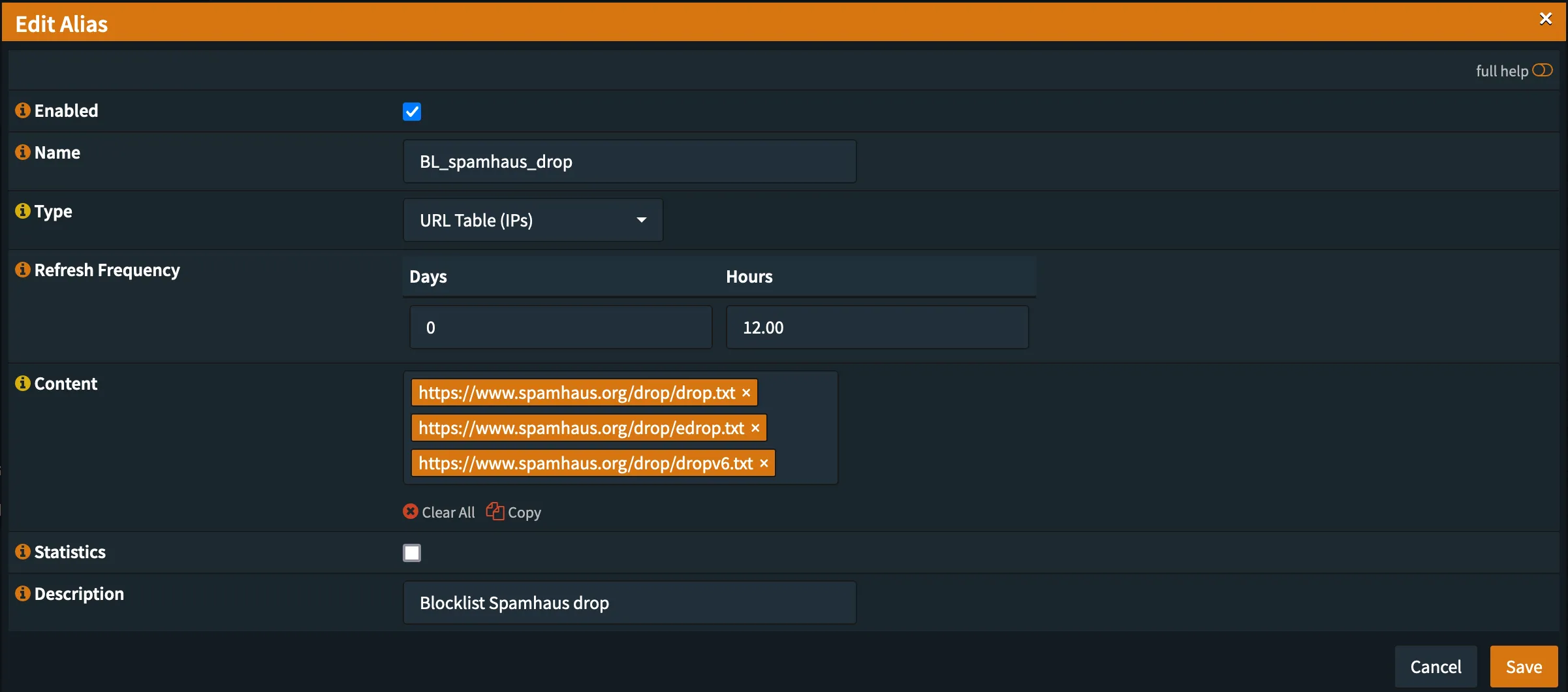
Always inspect the content of a list before first use. Some lists contain private IP ranges that may block local traffic — or worse, lock you out of your firewall.
Step 2 - Configure a firewall rule
A floating rule makes sense here since you want to block traffic to and from these IPs regardless of interface or direction. A WAN-only rule would also work if you only need to block traffic at the WAN interface(s).
Note: Floating rules require extra caution with blocklist content. Private IP ranges in a blocklist could lock you out.
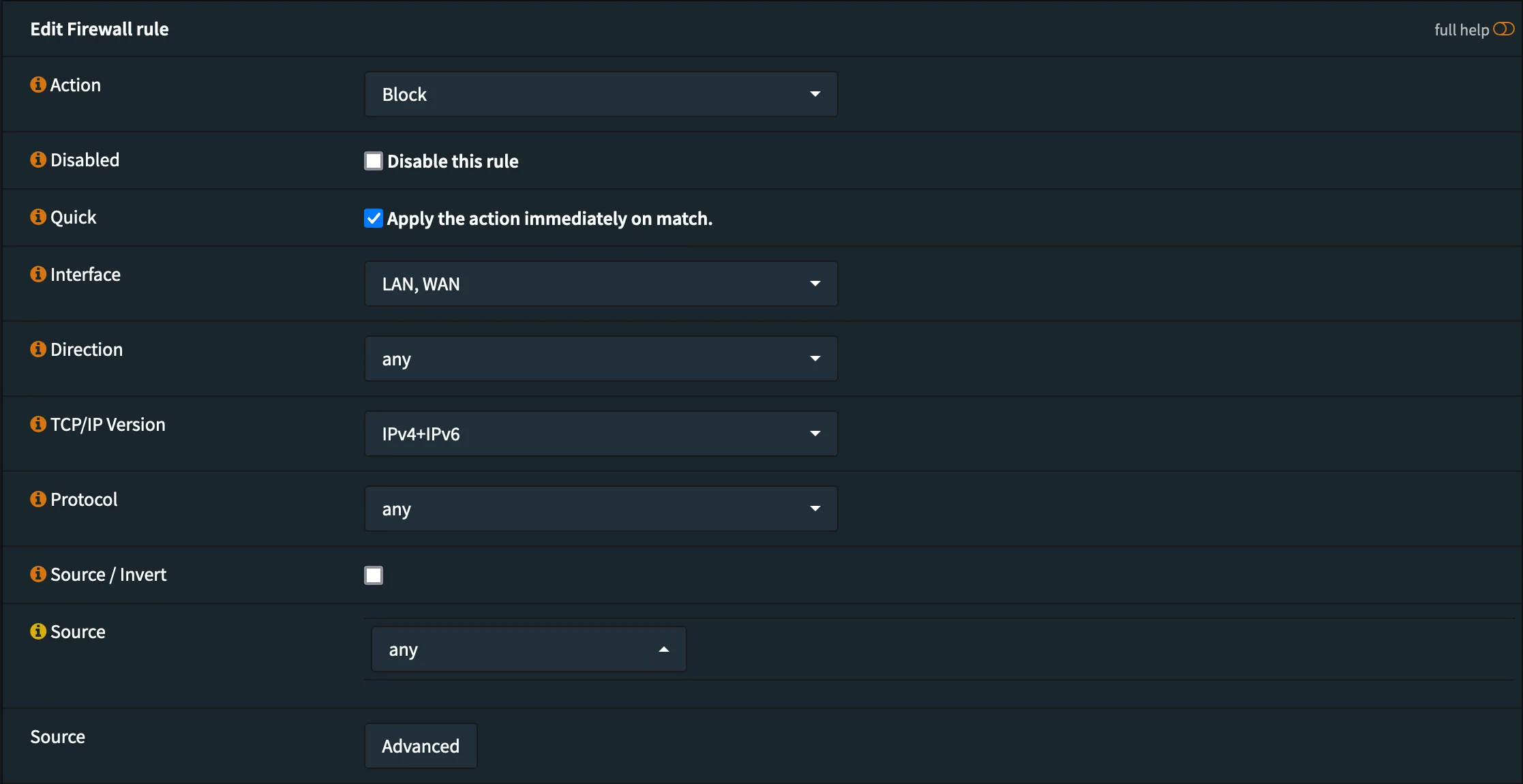
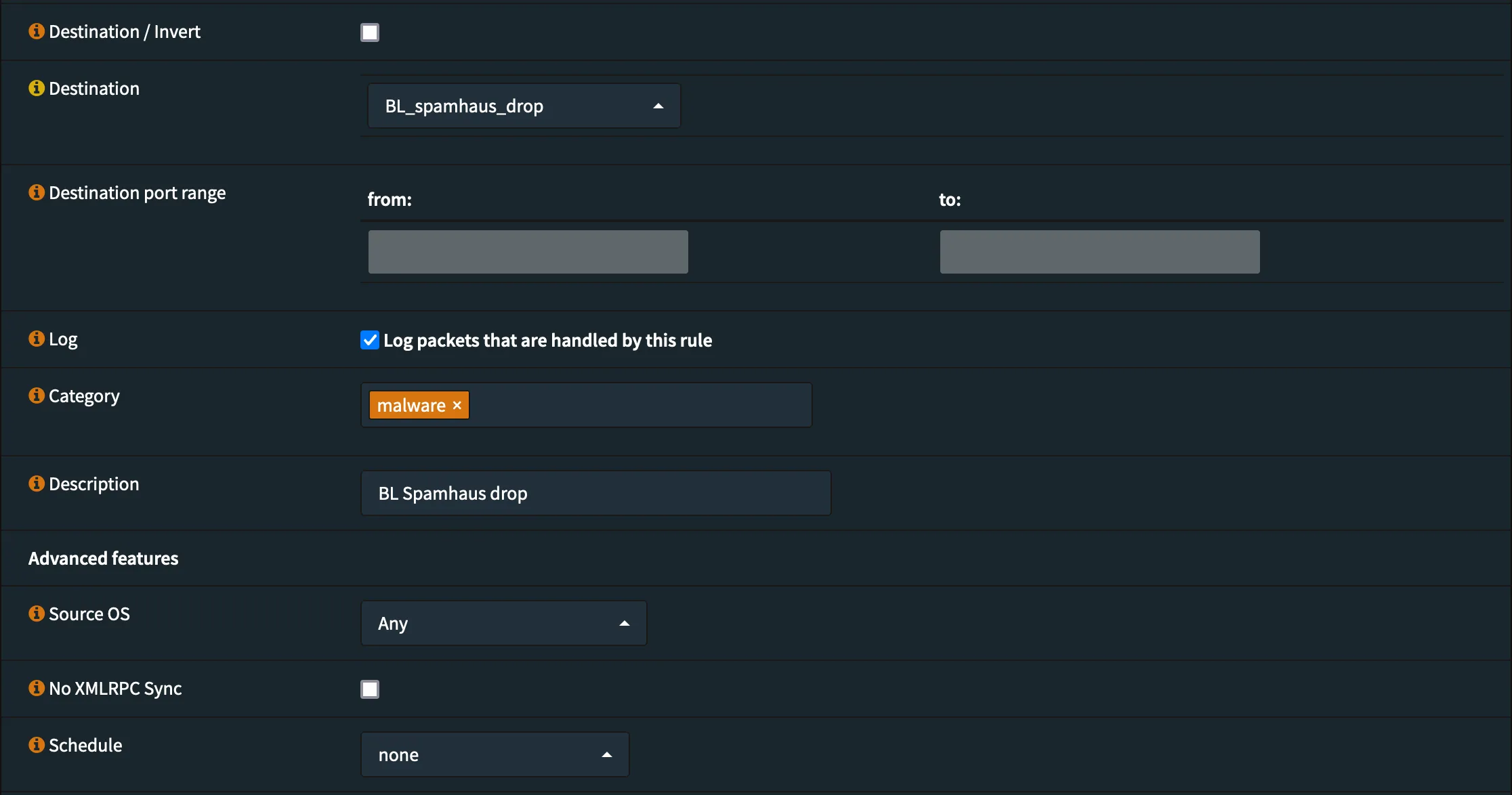
Configure the rule with these settings:
- Rule category: Floating
- Action: Block
- Direction: Any
- IP Version: IPv4+IPv6
- Protocol: Any
- Logging: Active
Enable logging and add a meaningful description — you will thank yourself months later when reviewing firewall logs. Save the rule and click Apply changes to activate it.
Step 3 - Verify the new firewall rule
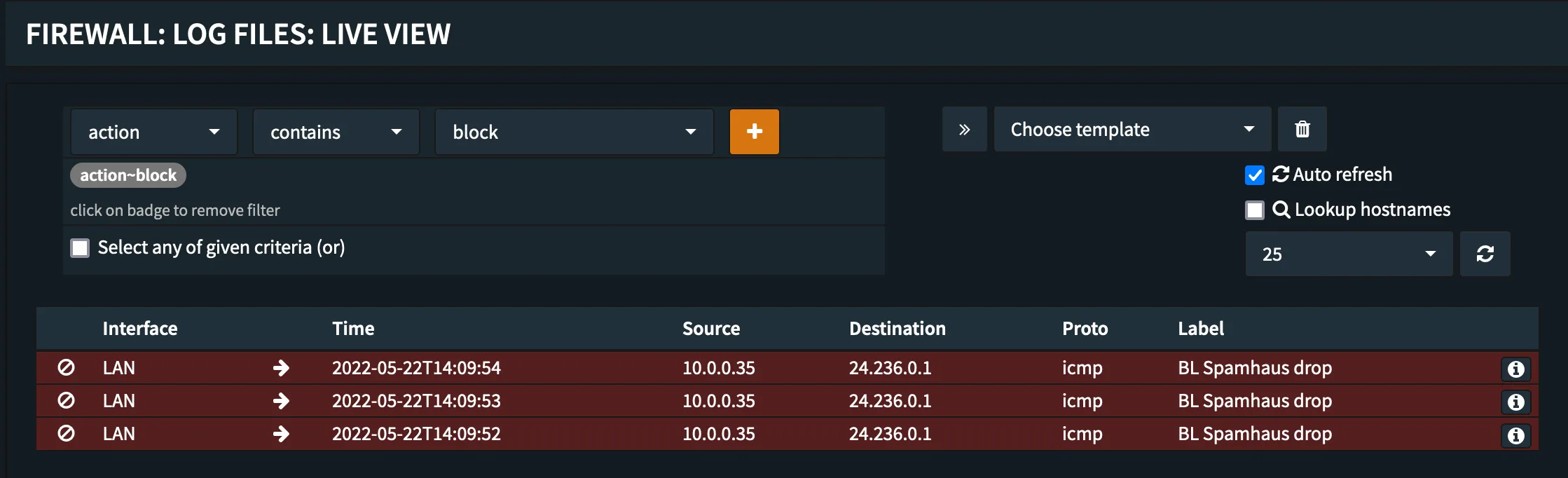
Keep an eye on the log for the next few hours. For a quick verification, pick an IP from one of the blocklists and try to connect:
ping -c 3 24.236.0.1
PING 24.236.0.1 (24.236.0.1) 56(84) bytes of data.
---
24.236.0.1 ping statistics ---
3 packets transmitted, 0 received, 100% packet loss, time 2050ms
As expected, pinging a blocklisted IP fails. The firewall live log confirms the traffic is blocked.
Recommended blocklists
With the basic mechanism working, extend it with additional blocklists for broader coverage. If you use this feature extensively, you may need to increase the Firewall Maximum Table Entries in Firewall -> Settings -> Advanced.
Layer 3/4 blocking is one layer of defense. Pair it with DNS filtering and Layer 7 inspection for full coverage. OPNsense supports both. For DNS-level blocking of encrypted DNS bypass, see Blocking DoH with OPNsense using FQDN domain lists.
The following blocklists are actively maintained and work well with OPNsense aliases.
Spamhaus DROP
The industry standard for known-bad IP ranges operated by spammers and cybercriminals. Updated multiple times daily.
https://www.spamhaus.org/drop/drop.txthttps://www.spamhaus.org/drop/edrop.txthttps://www.spamhaus.org/drop/dropv6.txt
Spamhaus ASN-DROP
Companion to DROP/EDROP listing entire ASNs controlled by cybercriminals.
https://www.spamhaus.org/drop/asndrop.txt
Emerging Threats
Aggregated threat intelligence from multiple sources including Spamhaus, DShield and abuse.ch. Roughly 15,000 IPs.
https://rules.emergingthreats.net/fwrules/emerging-Block-IPs.txt
CINS Army
Community-maintained list of IPs exhibiting malicious behavior. Updated in near real-time.
https://cinsscore.com/list/ci-badguys.txt
DShield 30 day
Top attacking /24 blocks aggregated over 30 days by the SANS Internet Storm Center.
https://iplists.firehol.org/files/dshield_30d.netset
For even broader coverage, consider the CrowdSec OPNsense plugin which provides crowdsourced threat intelligence with a native integration.
Key takeaways
- Block at Layer 3/4 for the most efficient and reliable IP-level protection
- Use separate aliases per blocklist for independent control and update intervals
- Floating rules catch traffic on all interfaces and directions — but watch out for private IP ranges
- Spamhaus DROP + Emerging Threats + CINS Army provide a solid foundation
- Layer blocklists with DNS filtering and Layer 7 inspection for defense in depth
What blocklists are you using with OPNsense? Share your setup in the comments or reach out on X.
Photo by Kai Pilger on Unsplash